Organizations and workspaces
Switch workspaces, understand the hierarchy, and manage roles, settings, and billing scope.
Learn how InstantML scopes every project, run, and setting to the active workspace, and how to switch between workspaces safely.
Understand the hierarchy
The hierarchy is intentionally small:
| Level | What it owns |
|---|---|
| Workspace / organization | Members, roles, billing, usage, API keys, reports, storage, and project data |
| Project | Related runs inside one workspace |
| Run | Metrics, config, tags, notes, logs, artifacts, rich objects, checkpoints, and lineage |
| Report | Workspace-scoped writeups with live dashboard panels and share links |
Switching workspaces changes the organization context for every dashboard and API route. Runs from another workspace do not appear in the current workspace.
Switch workspaces from the account menu
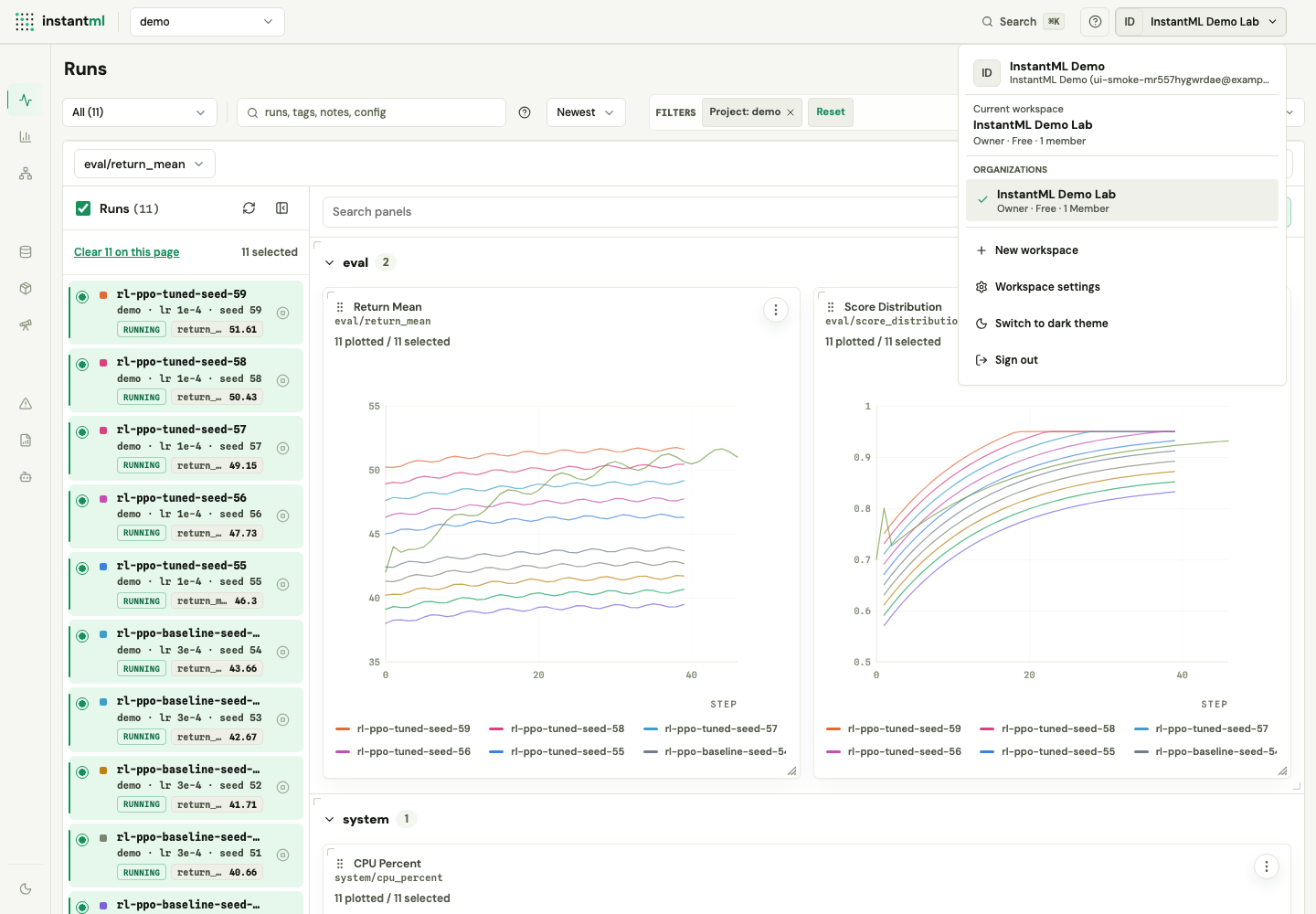
Use the account menu in the top right to:
- See the current workspace name, plan, and your role.
- Switch between personal and organization workspaces.
- Create a new workspace with New workspace.
- Open the Workspace settings modal, which includes the Billing section when your role allows it.
- Toggle the light/dark theme.
- Sign out.
The switcher groups your personal workspace and organization workspaces into separate sections, with your current workspace marked.
Personal workspaces are single-seat and always stay one owner seat. Plan seat counts apply to organization workspaces; create or switch to an organization workspace when you want to invite teammates.
Assign roles
Workspace roles control mutations:
| Role | Typical access |
|---|---|
| Owner | Full workspace, billing, seat, API-key, and data access |
| Admin | Workspace administration and data access without ownership transfer |
Write/read (member) | Create and update runs, artifacts, reports, and saved views |
Read only (viewer) | Read dashboard data without write access |
The shared demo workspace is read-only. Use it for exploration; it does not accept run, artifact, report, or settings mutations.
Confirm the scope before you act
Settings, API keys, usage, storage mode, invitations, and billing always apply to the active workspace. Confirm the top-right workspace name before creating keys, inviting teammates, or launching imports into a new organization.