Agent tab
Connect coding agents to your workspace over MCP and see what they can do with your runs.
Point a coding agent at the InstantML MCP server from the Agent tab, then browse the tools and prompt starters it can use against your runs.
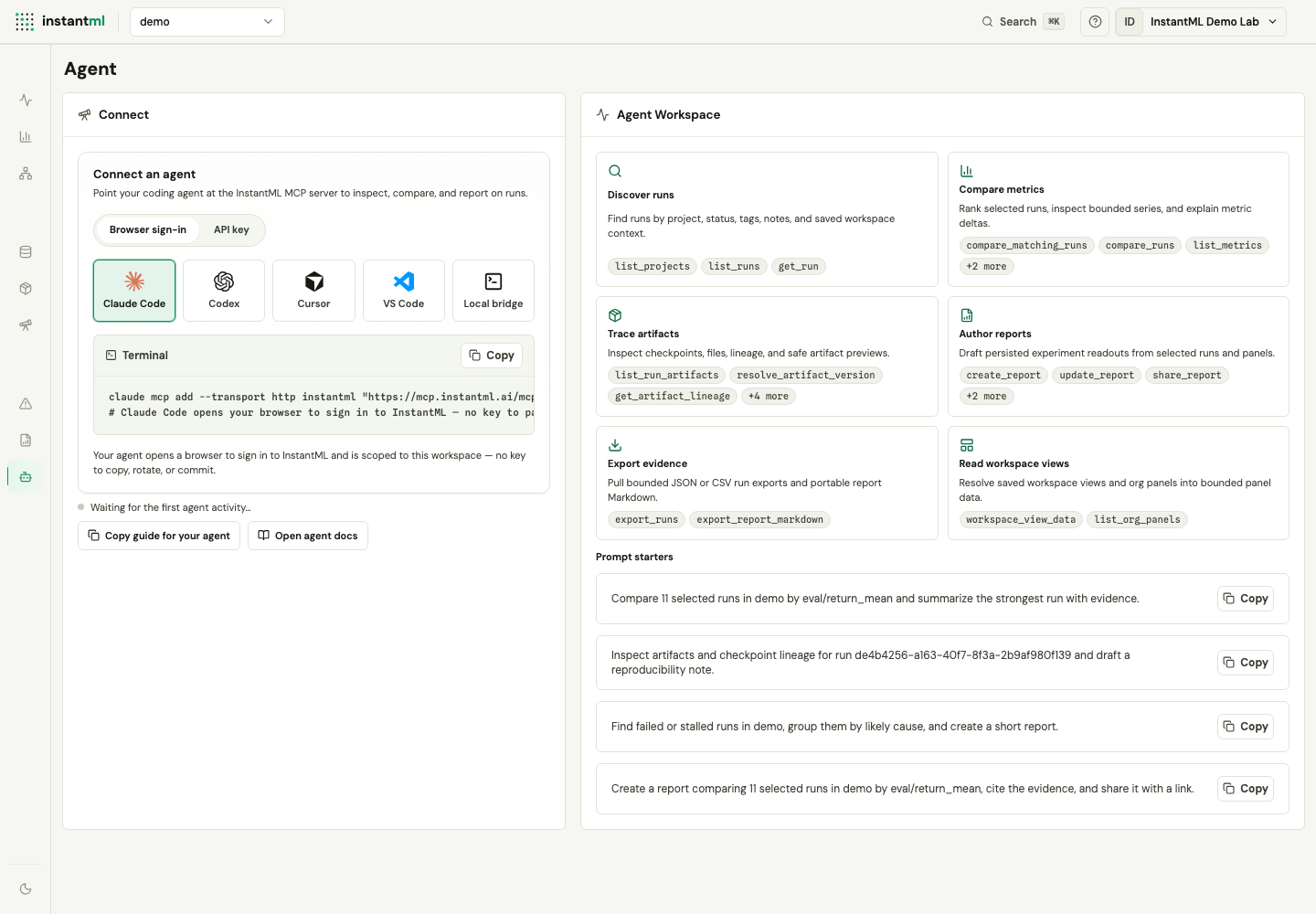
Connect an agent
The Connect panel points your coding agent at the hosted MCP server at https://mcp.instantml.ai/mcp.
Pick an authentication method:
- Browser sign-in (default) — connect by URL only. The agent opens a browser to sign in to InstantML and receives a short-lived token via MCP OAuth, so there is no key to copy, rotate, or commit. Sign-in is scoped to the active workspace (the connection URL carries its
org_id) and grants read-only access as the signed-in user. - API key — the agent sends an API key as a Bearer token. Create an
Agent MCP keyin Workspace settings → API and the snippet fills it in for you. Use a key when the agent needs write scopes such as report editing.
Then pick your client — Claude Code, Codex, Cursor, VS Code, or Local bridge (Claude Desktop and other stdio clients via mcp-remote) — and copy the generated setup snippet. For example, the Claude Code snippet with an API key:
claude mcp add --transport http instantml https://mcp.instantml.ai/mcp \
  --header "Authorization: Bearer instantml_..."
Below the snippet, an activity line shows the most recent agent request and which key it used, so you can confirm the connection worked. Copy guide for your agent copies an agent-readable Markdown guide you can paste into a session, and Open agent docs opens Agent access over MCP.
Browse agent capabilities
The Agent Workspace panel lists what a connected agent can do, grouped into capability cards with the tracker.* tool names each one uses. Expand a card's tool chips to see the full list, and copy a prompt starter to try a first request, such as listing your latest runs or comparing selected runs.