Compare runs
Compare selected runs side by side from the Runs Table view.
Select runs in the Runs Table view to read a side-by-side comparison with a reference run and goal-aware deltas.
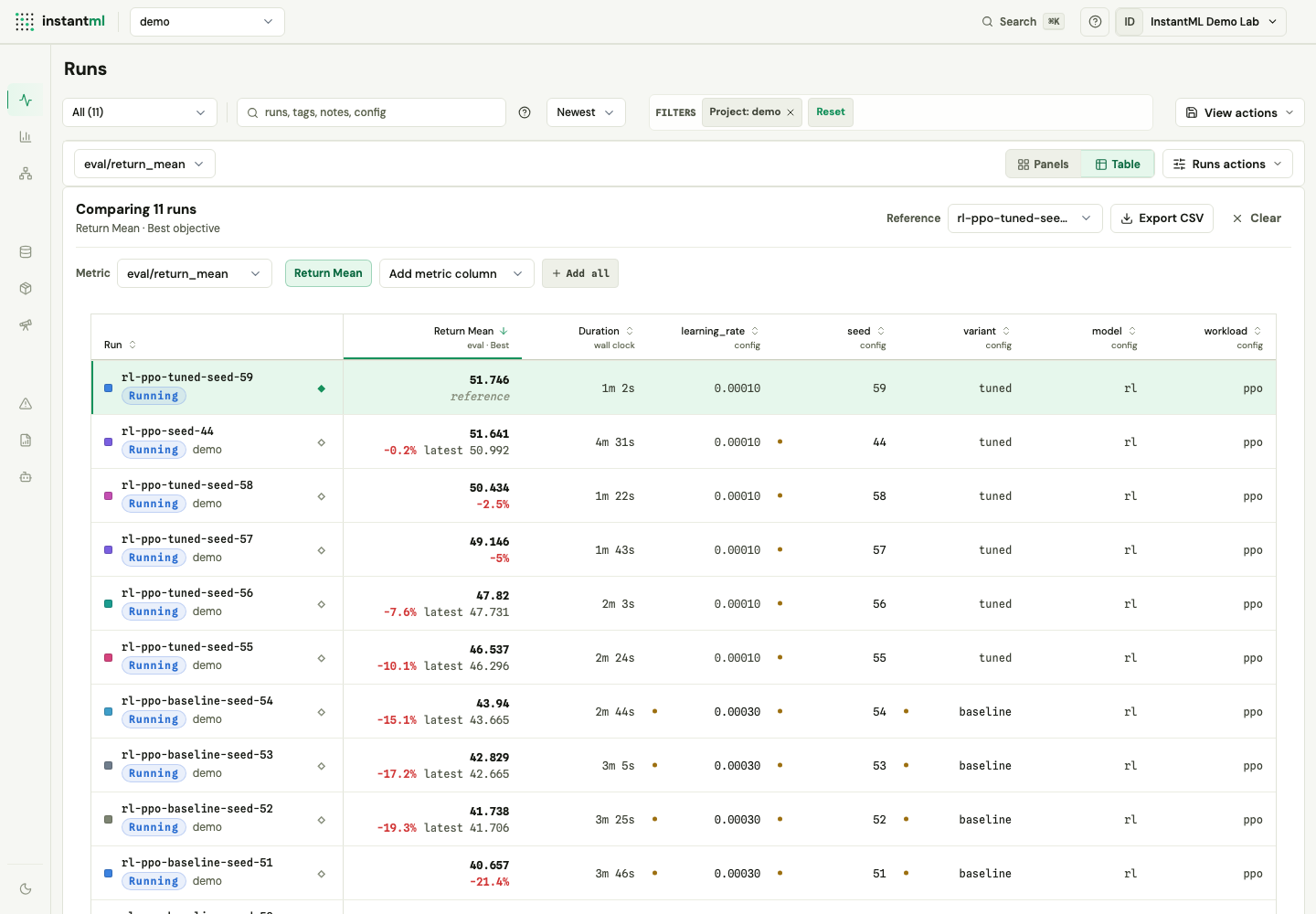
Open the comparison surface
- Go to Runs.
- In the Runs command bar, switch the Panels ⇄ Table toggle to Table.
- Select two or more runs with the checkboxes in the table.
With fewer than two runs selected, the panel shows a quiet prompt instead of an empty table. Select a second run and the comparison renders above the table.
The comparison reads the first 50 selected runs. When more are selected, the header notes how many runs are beyond the cap so the table stays responsive.
Read the comparison
The header reads "Comparing *N* runs" with the active metric and its goal direction. Each run is a row; metric, config, and artifact values are columns:
- Reference run — choose the baseline from the Reference selector. Deltas in every other row are measured against it.
- Goal-aware deltas — each metric cell shows the change versus the reference, colored by whether the metric improved (lower is better for loss-like keys, higher otherwise).
- Metric columns — start from the primary metric, then Add metric columns (up to 12 total), Add all, remove individual columns, or Reset to the primary metric.
- Sortable columns — click a column header to sort runs by run name, that metric, config, duration, or artifact count.
- Artifacts jump — click a run's artifact count to open that run's Artifacts.
Export or clear the selection
- Export CSV downloads the selected runs and their bounded metric, attribute, and artifact data. Synchronous export is capped at 100 selected runs; the button explains when a selection is empty or above the cap.
- Clear drops the current selection so you can start a new comparison set.
Export follows the same org, project, role, and API-key rules as the API, since it calls GET /api/export?format=csv&run_ids=....
Narrow first, then compare
Use the Runs workspace to narrow candidates before comparing:
- Search names, tags, notes, configs, and other indexed summary text.
- Use exact or grouped filters such as
tag:baseline status:finished,name:"long context" -tag:debug, and(tag:baseline OR tag:candidate) notes:ablated. - Sort by Newest, Latest metric, Best metric, Name, Status, or Duration.
Then switch to Table, select the survivors, and read the side-by-side comparison. For a single run's full context — config, source metadata, logs, artifacts, and lineage — open Run Detail. The Run Detail header also has a Compare button that selects the open run and jumps straight to the Table view.
The comparison uses bounded summary data. Full metric series are fetched separately when a line panel needs them, so comparison scanning never pulls every metric history at once.